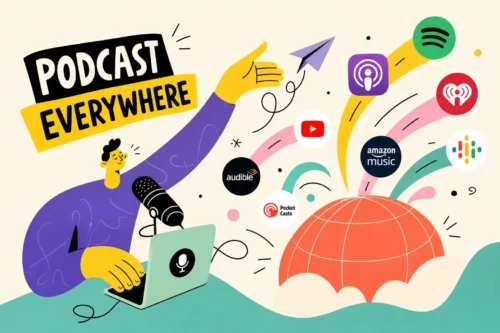
You record a solid episode, export the file, and then the energy drains out of the room. You’re staring at a list of podcast apps, Apple Podcasts, Spotify, Amazon Music, iHeartRadio, Pocket Casts, and wondering whether you have to manually upload to every single one of them, forever. It’s where a lot of real shows stall before they ever launch.
If you’ve been asking what is the best way to distribute a podcast on all platforms, the answer is a one-time setup that runs itself after that. At StreamBox, when we handle production for a client, getting their show live across every major directory is built into the delivery workflow, not tacked on at the end. For creators and marketing teams managing this themselves, the process is the same: set it up correctly once, and the distribution runs itself from there. By the end of this guide, you’ll know which hosting platform to choose, what assets to prepare, how to submit to each major directory, how long approval takes, and how to verify your listing once it’s live.
What Is the Best Way to Distribute a Podcast on All Platforms?
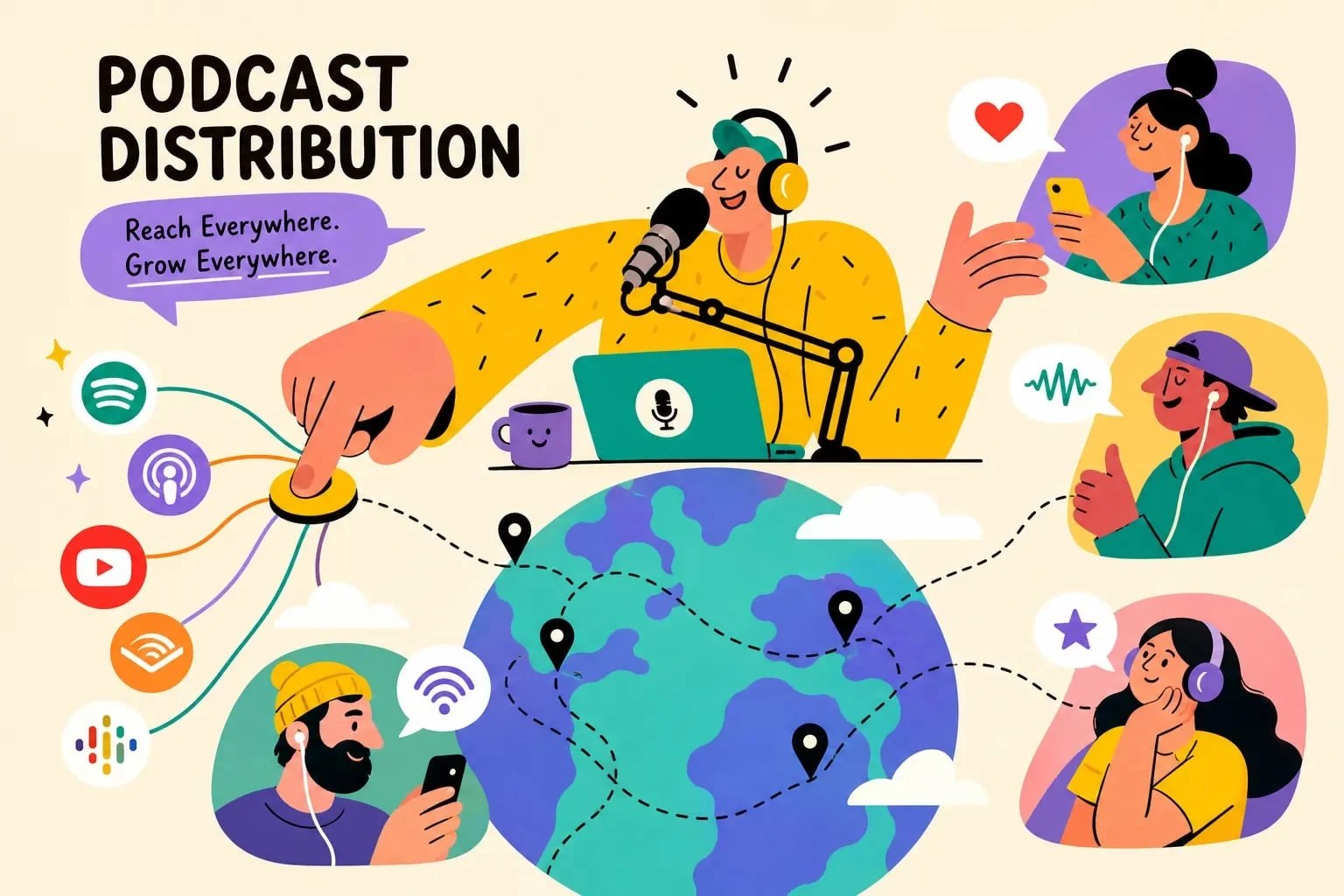
Most people think of podcast distribution as a series of individual upload tasks: one file for Apple, another for Spotify, another for Amazon. That mental model makes the whole thing feel exhausting. The actual system is simpler. Your hosting platform generates one RSS feed, and every directory pulls from that same feed automatically once you’ve connected them.
Your host is not just storage. It’s the technical backbone of your entire podcast distribution setup. The work is front-loaded in the initial connections, but after that, publishing a new episode means uploading once to your host, and every connected platform picks it up on its next feed check. Think of it as podcast syndication on autopilot, configure the system once and let it run.
One RSS Feed: The Foundation of Every Podcast Publishing Guide
An RSS feed is a structured XML file that contains your show’s metadata, artwork, and episode audio links. When you submit that feed URL to Apple Podcasts, Spotify, Amazon Music, or any other directory, you’re giving that platform a permanent address to check for new content. Every time you publish an episode, each platform detects the update and pulls the new entry automatically. You never upload an episode to each platform separately.
If you ever switch hosting providers, you’ll need to configure a 301 redirect from your old RSS feed URL to the new one. A 301 tells podcast apps and directories that the feed has permanently moved, so subscribers follow automatically. Keep the old hosting account active and the redirect live for at least a month to give every platform and app time to update. Do not cancel the old account the same day you migrate.
Which Hosting Platforms Automate Distribution in 2026
Several hosting platforms now handle distribution across all major directories after a one-time connection. Strong options include Acast, Buzzsprout, Podbean, Libsyn, RSS.com, Transistor, Riverside, Castos, and Ausha. Each one generates your RSS feed, guides you through initial directory submissions, and then keeps every platform current as you publish new episodes.
For the broadest coverage, including YouTube republishing alongside Apple Podcasts, Spotify, and Amazon Music, RSS.com, Riverside, Transistor, and Castos are worth comparing directly. One important clarification: “automatic distribution” does not mean your show appears everywhere the moment you sign up. Each platform still requires a one-time connection and approval. After that initial setup, the automation kicks in.
What to Prepare Before You Submit Your Show Anywhere
Most submission rejections and delays share a single root cause: assets that don’t meet spec. Getting your artwork, audio files, and metadata right before you submit anywhere saves you from restarting the process and waiting through another review cycle.
Artwork and Audio File Specs Every Platform Accepts
Use one square image at 3000×3000 pixels, exported as JPEG or PNG, in RGB color with no transparency. Keep the file size at or below 512 KB. That single file satisfies the published requirements for Apple Podcasts, Spotify, and Amazon Music simultaneously. Apple requires a minimum of 1400×1400 px; Spotify accepts images as small as 640×640 px. Either way, 3000×3000 px is the safe universal standard that works everywhere without adjustment.
For audio, export your episodes as high-quality stereo MP3 files at 128 to 192 kbps for spoken-word content. AAC and M4A are also accepted on most platforms. Make sure every episode’s audio URL is a publicly accessible HTTPS link, and verify that your hosting server returns the correct MIME type: audio/mpeg for MP3 files. Platforms validate these links before listing your show, and a broken or private URL will delay approval.
The Metadata Fields That Determine How Your Show Gets Found
Complete metadata is not a formality. It determines whether your show appears in search results, category browsing, and recommendation feeds on every platform. At the show level, you need a title, author name, description, category, language, copyright notice, owner email address, and an explicit-content flag set accurately.
At the episode level, each entry should include a unique title, show notes or description, the audio file URL with a correct enclosure tag, a stable GUID that never changes, a publication date formatted to RFC 2822, and the explicit content flag. Season and episode numbers are required for serialized shows and strongly recommended for any show with more than a handful of episodes. A feed that satisfies Apple Podcasts’ requirements will generally pass validation at Spotify and Amazon Music as well, so build to Apple’s standard first and you cover all three.
How to Get Your Show Listed on Every Major Platform
Once your hosting account is live, your RSS feed validates cleanly, and your assets are ready, submitting to directories is a one-time task per platform. The process is consistent across all of them: paste your feed URL, verify ownership, and wait for review. This RSS feed submission step is the core of how podcast syndication actually works.
Submitting to Apple Podcasts
Log into Apple Podcasts Connect with the Apple Account that will own the show. Select “Add Show,” then “Add with an RSS Feed,” and paste your host-generated feed URL. Apple will import the show details from your RSS feed for you to review before submitting. Plan for a few business days of manual review before a brand-new show goes live, don’t schedule a hard launch date without that buffer built in.
Connecting to Spotify for Creators
Log into Spotify for Creators and select “Find an existing show,” then choose “Somewhere else.” Enter your RSS feed URL, and Spotify will send an 8-digit verification code to the email address published in your RSS feed. Retrieve that code, enter it in the submission form, review your show information, and submit. One important detail: a Spotify show can only be claimed by one account at a time. If another account already controls your show’s listing, the current owner will need to remove or transfer access before you can complete the claim.
Adding Amazon Music and Other Directories
Amazon Music accepts RSS feed submissions through their podcast portal and typically takes one to three days to approve a new show. For iHeartRadio, TuneIn, Pocket Casts, and Podcast Addict, the same RSS submission model applies. If you’re using a hosting platform with built-in distribution, many of these connections happen automatically after your initial setup, without requiring separate manual submissions to each one.
How Long It Takes for Your Show to Actually Go Live
Publishing an episode in your hosting dashboard and seeing it appear in podcast apps are two separate events on different timelines. Set the right expectations before your launch date, especially if you’re coordinating a press push or marketing campaign around the debut. One of the most common mistakes creators make is scheduling a fixed launch date without accounting for first-submission review windows.
Platform-by-Platform Approval Windows
Spotify typically processes new episodes within an hour, though it can stretch to 24 hours in some cases. Apple Podcasts delivers approved episodes within 1 to 24 hours for shows already in the directory, but a brand-new show submission goes through manual review and can take anywhere from 24 hours to five business days. Amazon Music takes one to three days for a new show’s initial listing. TuneIn and smaller directories can take a week or more if they require manual review.
After your show clears initial approval, future episodes appear automatically within a few hours across all connected platforms. The long waits apply to first-time submissions, not to routine publishing once your show is established in each directory.
What to Do If Your Episode Doesn’t Show Up
If an episode is missing after 24 hours, start by checking your RSS feed directly and reviewing your hosting dashboard for any error flags. Most missing-episode issues trace back to a malformed feed, a broken audio URL, or a metadata field that failed validation. After 72 hours with no update, contact the platform’s support team directly or reach out to your hosting provider’s support. Don’t assume it will resolve on its own after that point.
How to Claim and Verify Your Listing on Apple and Spotify
If your show is already listed in a directory but you don’t control it, or if you’ve switched hosts and need to reconnect your existing listing, claiming ownership is the fix. Both Apple and Spotify have a clear, structured process for this.
Claiming Your Show on Apple Podcasts Connect
Sign into Apple Podcasts Connect, open “More Actions,” and select “Claim Existing Show.” Apple will generate a claim token that is valid for seven days. Paste that token into the corresponding field in your hosting provider’s settings. Your host adds the token to your RSS feed, Apple validates the match, and the show transfers to your account within 24 hours. The process is entirely token-based, so you don’t need to contact Apple directly unless something goes wrong after the 24-hour window.
Verifying Ownership on Spotify for Creators
Sign into Spotify for Creators and select “Find an existing show.” Enter either your RSS feed URL or the Spotify show URL for your podcast. Spotify sends an 8-digit verification code to the email address in your RSS feed. Enter that code to complete the claim and confirm the show appears in your dashboard. If the verification email doesn’t arrive, update the contact email in your RSS feed through your hosting provider and retry the process.
Build the Foundation Right and the Reach Follows
The best way to distribute a podcast on all platforms is not a shortcut or a workaround, it’s a system. Choose the right hosting provider, build your RSS feed correctly from the start, submit that feed to each major directory once, and let automation handle every episode after that. That’s what this podcast publishing guide comes back to at every step: the work is front-loaded by design.
Get your artwork to the 3000×3000 px cross-platform standard, fill in every metadata field completely, make sure your audio URLs are public HTTPS links, and don’t rush the submission process with incomplete assets. Done correctly, missing episodes and rejected artwork become one-time problems, not recurring ones.
For brands and creators who’d rather focus entirely on the content, podcast distribution is one of the steps StreamBox handles as part of a full production engagement. From RSS feed setup and directory submission through episode publishing and platform verification, it’s built into how we deliver a show. Whether you’re managing this yourself or working with a production partner, the principles are the same. Get the foundation right, and the reach takes care of itself. If you want a production partner to handle this end to end, talk to our team about how we build and deliver shows.