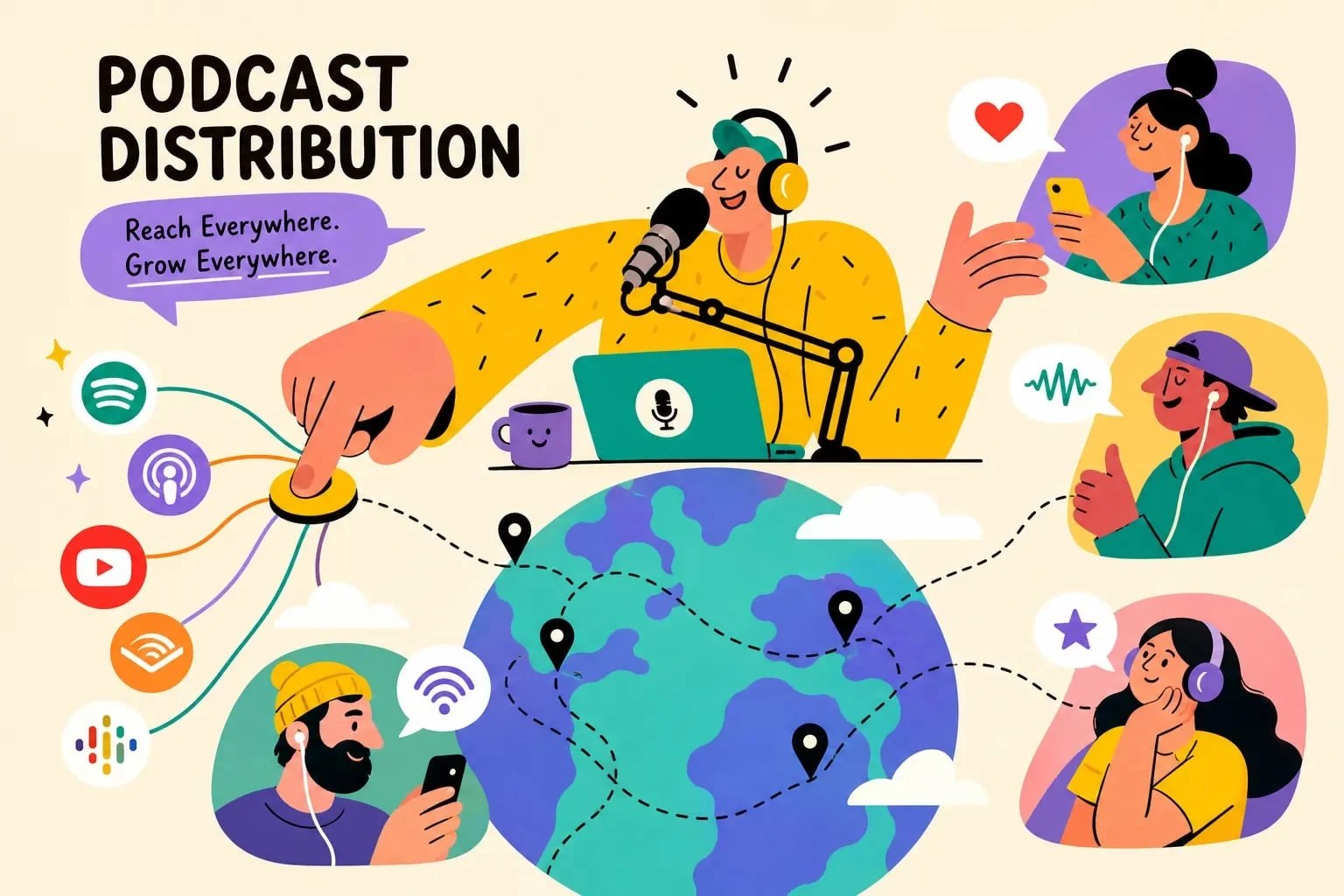
Publishing your podcast on Spotify and YouTube follows a clear four-step sequence: choose a podcast host, configure your RSS feed, submit to Spotify for Creators, and convert your audio into a video file for YouTube. There is no universal single-button solution that publishes to every platform simultaneously, though some hosts do offer automatic multi-platform distribution after initial setup. Once you complete that setup, adding new episodes is straightforward. Each platform has its own workflow, and this article walks through both with the exact specs, tools, and settings you need to publish your podcast on Spotify and YouTube efficiently.
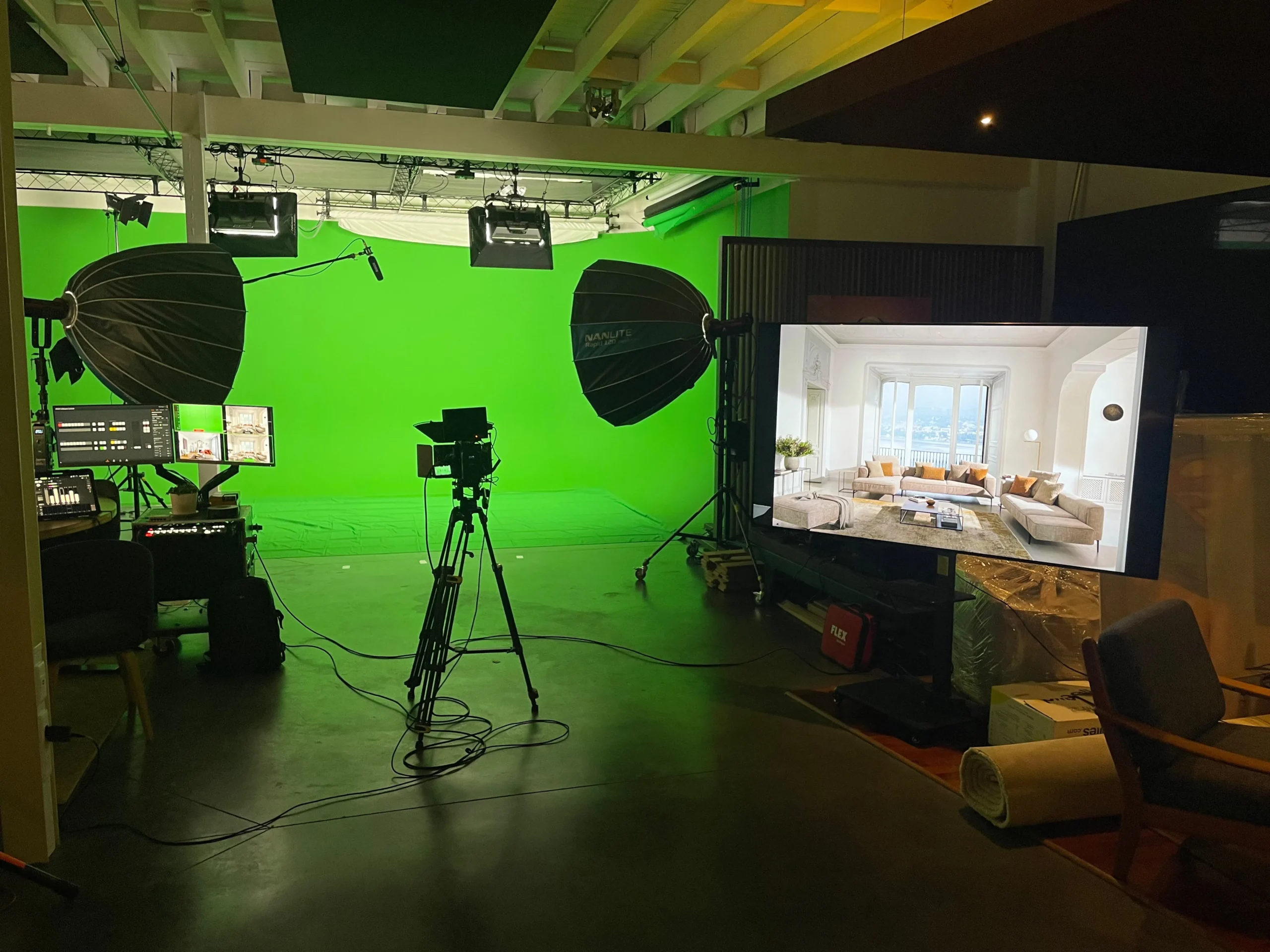
Some production studios manage this full pipeline for clients as part of post-production, including platform-specific SEO, formatted audio, and MP4 conversion. StreamBox is one such studio, offering end-to-end post-production services that cover both platforms. The DIY workflow below mirrors what a professional publishing process looks like, so whether you’re handling it yourself or eventually handing it off, the logic is the same.
Key takeaways
- One host, many platforms: Your podcast host generates the RSS feed that Spotify reads, so you upload once and distribution follows, though you may need to enable distribution in your host dashboard first.
- RSS is the standard path to Spotify: Submitting an external RSS feed to Spotify for Creators is the recommended approach for multi-platform reach, while hosting directly on Spotify suits shows focused exclusively on that platform.
- YouTube requires video: Audio-only files don’t upload as standard videos; you need at least a static image exported as an MP4.
- Specs matter before you submit: Cover art, bitrate, and feed metadata need to be correct before submission to avoid rejections.
- SEO drives discovery: Getting episodes live is step one. Optimized titles, descriptions, and timestamps are what build an audience over time.
- Volume changes the math: A managed production partner like StreamBox becomes the practical choice once episode frequency increases or distribution quality directly affects a brand’s reputation.
How to choose a podcast host and set up your RSS feed
Your podcast host is the foundation of your entire distribution strategy, and you need one before you can publish your podcast on Spotify or YouTube. The host stores your audio files, generates your RSS feed, and keeps that feed updated so directories can pull new episodes when you publish.
The host-to-RSS-to-directory pipeline works like this: you upload your episode to the host, the host updates your RSS feed, and Spotify pulls the new episode from that feed. You don’t have to log in to Spotify every time you publish. Hosts with automatic Spotify distribution include Buzzsprout, RSS.com, Libsyn, Transistor, Podbean, Riverside, and Castos, though the specifics of how each host pushes or surfaces that feed can vary, so check your dashboard settings to confirm distribution is enabled. Spotify for Creators itself is also a hosting option, but Spotify-hosted shows don’t automatically reach other directories, which limits multi-platform reach unless you enable the RSS feed under settings separately.
What your RSS feed needs before you submit anywhere
Before submitting your feed to any directory, run through this checklist in your hosting dashboard. Missing any of these items will cause submission errors or verification failures.
- At least one published episode live in the feed
- A valid, publicly accessible RSS feed URL (not your podcast website URL)
- The email address in the feed must be one you can access, since Spotify sends its ownership verification code there
- Square cover art embedded in the feed, ideally at 3000 x 3000 px
- Explicit-content flag, language, category, and country set correctly in the host dashboard
How to publish your podcast to Spotify for Creators
Spotify renamed Spotify for Podcasters to “Spotify for Creators” in 2026. You have two submission paths: host directly on Spotify for Creators, or connect an external RSS feed. Most podcasters using a third-party host will follow the RSS path, which is the better choice for multi-platform distribution.
Hosting directly on Spotify is the simpler setup for people who only care about Spotify reach. It publishes episodes to Spotify automatically without any feed submission. The trade-off is that you’ll need extra steps to distribute to Apple Podcasts, Amazon Music, and other directories. For a show aiming at genuine multi-platform growth, an external host with RSS distribution is the more scalable setup.
Step-by-step: submitting your RSS feed to Spotify for Creators
- Sign in at Spotify for Creators with your Spotify account.
- Select “Add a new show,” then choose the option to submit an existing podcast.
- Choose “Somewhere else” and paste your complete RSS feed URL.
- Confirm that Spotify displays the correct artwork, title, and episodes.
- Click “Send Code” and enter the 8-digit verification code Spotify emails to the address in your RSS feed.
- Fill in category, language, country, and hosting provider.
- Review the details and submit.
Processing typically happens within a few hours, but allow up to five business days before treating a submission as delayed. Spotify doesn’t always send a confirmation email, so check your listing manually in the Spotify for Creators dashboard. Once approved, future episodes publish automatically when your host updates the RSS feed. No re-submission is needed.
What audio and artwork specs does Spotify require?
Getting your specs right before submission prevents rejections and quality loss. Spotify accepts MP3, M4A, and WAV audio files in stereo or mono. MP3 is the safest format for cross-platform compatibility. For bitrate, use 128 kbps as the minimum; 192–320 kbps is the recommended range for broadcast-ready source audio, even though Spotify re-encodes episodes for streaming at around 96 kbps on most devices and 128 kbps in the web player. The higher your source quality, the less quality degrades during re-encoding.
Cover art must be square (1:1 ratio), with a minimum of 640 x 640 pixels and a recommended size of 3000 x 3000 pixels for sharp display across all directories and devices. Accepted formats are JPG, PNG, and TIFF in sRGB color space. Make sure your show name is legible at thumbnail size, because the artwork appears small in directory browse views and search results.
How to publish podcast episodes on YouTube
YouTube doesn’t accept audio-only files as standard video uploads. Every episode needs a video layer before you can publish it to the platform. Several approaches range from extremely fast to fully produced, depending on how much visual engagement you want.
Four practical ways to convert your episode to a YouTube-ready MP4
Static image plus audio is the fastest method. Use Canva, CapCut, iMovie, or Clipchamp to place your podcast artwork on a 16:9 canvas, extend it to the full episode length, and export as MP4. It takes minutes and works fine for full-length episode archives.
An audiogram with an animated waveform adds meaningful visual engagement with minimal extra work. Tools like Headliner, Wavve, Descript, and EchoWave let you upload your audio, add an animated waveform and captions, and export a broadcast-ready MP4 in a 16:9 layout.
Stock footage or AI visuals create a more dynamic feel without needing camera footage. Tools like Jellypod, Descript, and Pexels-based stock clip libraries can match visuals to your episode content, though the automated visual matching is inconsistent enough that manual review is worth the time.
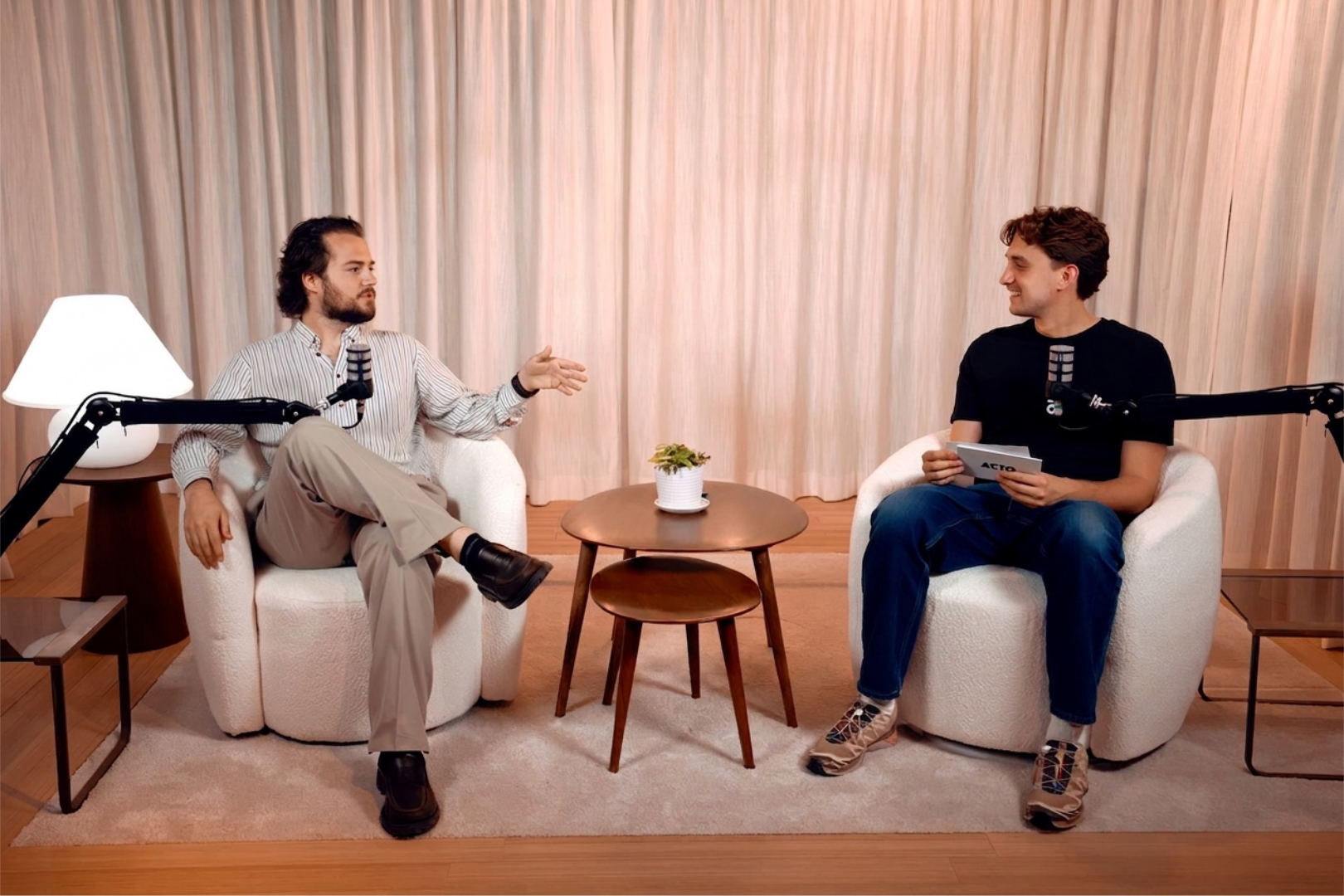
A recorded video podcast is the highest-quality format and the one that performs best for long-term YouTube channel growth. Filming the conversation, then syncing the cleaned audio in DaVinci Resolve, Premiere Pro, or CapCut, gives you a natural video experience and opens up YouTube Shorts repurposing from the same footage.
YouTube upload specifications for podcast episodes
| Spec | Requirement |
|---|---|
| Container | MP4 |
| Video codec | H.264 |
| Audio codec | AAC-LC, 48 kHz |
| Resolution | 1920 x 1080 (16:9) |
| Thumbnail | JPG or PNG at 1280 x 720 |
| Audio quality | Clean, leveled, free of clipping |
YouTube also supports connecting an existing RSS feed directly to a channel’s podcast feature. When you submit the feed, YouTube generates videos using episode artwork as the static visual layer and imports episode metadata automatically. This is the most automated path, but it gives you less control over visuals, captions, and episode-level settings compared to a manual upload. It’s a solid option for audio-first shows that want a low-maintenance YouTube presence without producing a separate video file for every episode.
How do I optimize episodes for search on Spotify and YouTube?
Getting episodes live is step one. Making them discoverable on both platforms is what drives sustained audience growth, and the indexing logic between Spotify and YouTube is different enough that each needs its own approach.
On Spotify, lead episode titles with the main topic or guest name rather than the episode number. As a best practice, aim for descriptions in the 150–300 word range, using natural language around the episode topic. Spotify indexes description text, so this is where targeted keyword coverage matters. Your category selection at the show level also affects which browse sections your show appears in. A consistent publishing cadence signals relevance to Spotify’s recommendation algorithm, so irregular publishing hurts discoverability even when individual episodes are well-optimized.
YouTube SEO: titles, descriptions, tags, and chapter timestamps
On YouTube, structure your title as: show name plus episode topic plus guest name. Front-load your most important keywords and keep titles concise, shorter titles display more cleanly across devices and search results. Write a 200-plus-word description with keyword-rich natural language in the first two paragraphs, since YouTube surfaces that text in search snippets. Add chapter timestamps directly in the description using this format: the first timestamp must be 00:00, and you need at least three timestamps with each chapter running a minimum of 10 seconds. Chapters improve time-on-page signals and make longer episodes significantly more navigable.
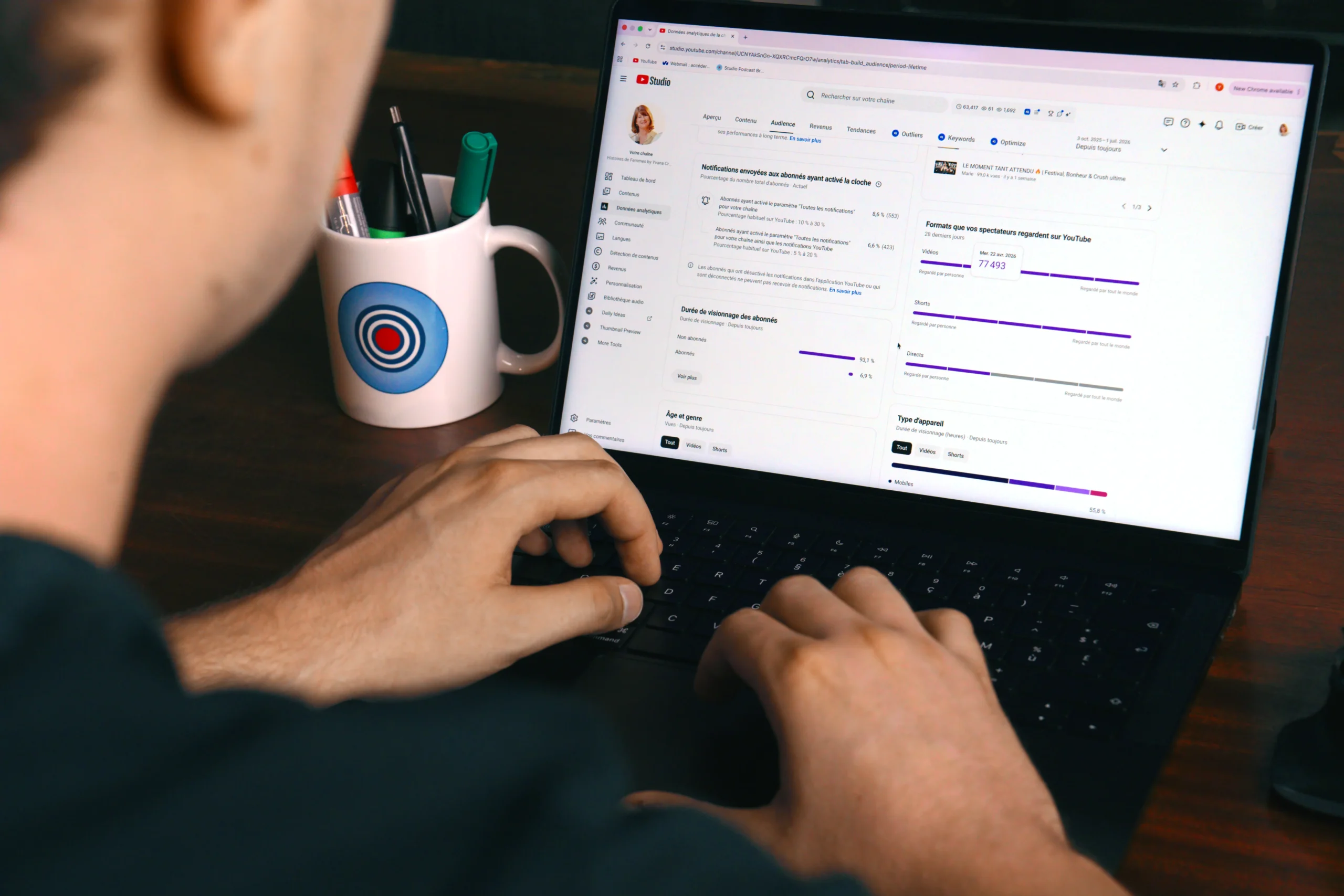
Captions are one of the most underused SEO levers on YouTube. YouTube indexes caption text directly, and accurate captions improve both search ranking and accessibility. Upload an SRT or VTT file, or paste a transcript and use YouTube Studio’s Auto-sync feature to align it to the audio. Always review the output for proper nouns, brand names, and technical terms before publishing. A clean transcript also accelerates episode repurposing into blog posts, LinkedIn articles, and social clips.
When it makes sense to hand multi-platform publishing to a production partner
The DIY workflow above works well for one or two episodes per month when you have time to manage hosting dashboards, file conversion, metadata writing, and SEO for two separate platforms. Once episode volume increases, or when distribution quality directly affects a brand’s reputation, the operational overhead compounds quickly. A missed chapter timestamp, an unchecked cover art rejection, or inconsistent metadata across platforms are small errors with real visibility consequences.
StreamBox offers multi-platform distribution as part of its post-production service, covering formatted audio for Spotify, MP4 conversion for YouTube, and SEO-optimized titles, descriptions, and chapter markers for each episode. A dedicated project manager handles the full chain from edited file to live episode on both platforms, so clients never need to log in to a hosting dashboard or format a timestamp manually. For brands, agencies, and creators who batch-record multiple episodes in a single session and need reliable, broadcast-ready delivery across directories, this removes the entire operational layer that typically sits between a recorded conversation and a published episode.
If you’re building a content series that needs to perform across Spotify, YouTube, and eventually LinkedIn or TikTok, the publishing pipeline is as important as the recording itself. Get in touch with the StreamBox team to learn how end-to-end production and distribution works in practice.
Your next steps to publish your podcast on Spotify and YouTube
The core workflow to publish your podcast on Spotify and YouTube comes down to six repeatable actions: choose a host, configure your RSS feed with complete metadata, submit to Spotify for Creators, convert your episode audio into an MP4, upload to YouTube with a proper description and chapter timestamps, and optimize each platform’s metadata separately. The initial setup takes the most time. After that, new episodes mostly require uploading to your host and letting the RSS pipeline do its job.
The process is reliable once it’s running. What changes as your show grows is not the workflow itself but the time investment required to execute it consistently at a high standard. Production partners like StreamBox exist to remove that operational load so creators and brands can stay focused on the content itself rather than the publishing infrastructure behind it. If you’re ready to explore what a managed end-to-end service looks like for your show, contact the StreamBox team.
Frequently Asked Questions
Is there a single-button way to publish to Spotify and YouTube at the same time?
No, there is no universal single-button solution that publishes to every platform simultaneously; some hosts do offer automatic multi-platform distribution after initial setup. Once that initial distribution is enabled in a host dashboard, adding new episodes becomes straightforward and the RSS pipeline handles updates to directories like Spotify.
How long does Spotify usually take to process an RSS feed submission?
Processing typically happens within a few hours, but you should allow up to five business days before treating a submission as delayed. Spotify doesn’t always send a confirmation email, so check the listing manually in the Spotify for Creators dashboard if you don’t receive a message.
After Spotify approves my show, do I need to re-submit the feed every time I publish a new episode?
No, once approved, future episodes publish automatically when your host updates the RSS feed and no re-submission is needed. Your host updates the feed when you upload an episode, and Spotify pulls the new episode from that feed.
Can a production partner like StreamBox handle captions, chapter timestamps, and uploading to both platforms for me?
Yes, StreamBox offers end-to-end post-production that covers MP4 conversion for YouTube, formatted audio for Spotify, and SEO-optimized titles, descriptions, and chapter markers for each episode. A dedicated project manager handles the full chain from edited file to live episode so clients do not need to log in to hosting dashboards or format timestamps manually.